Slack
Connecting an integration will create a configuration specific to your Slack workspace. You can then define rules to control which events trigger notifications and which Slack channel they’re sent to.
Link your workspace
By default Slack let any workspace member add application to it. If you want to learn more about it you can check this Slack article.
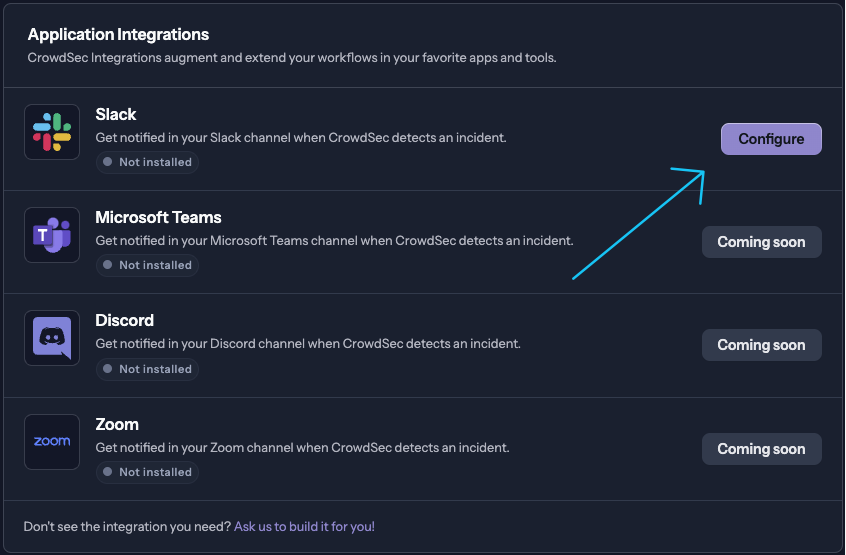
- In the CrowdSec Console, navigate to Settings > Integrations and then select Configure in the Slack row.
-
Select the Slack workspace you want to link to your CrowdSec Console using the dropdown menu on top-tight of the page. Then select Allow. Repeat the process if you want to link more workspace.
-
You should be redirected to the Slack integration page. You can now create a notification rule by navigating to the Rules tab.
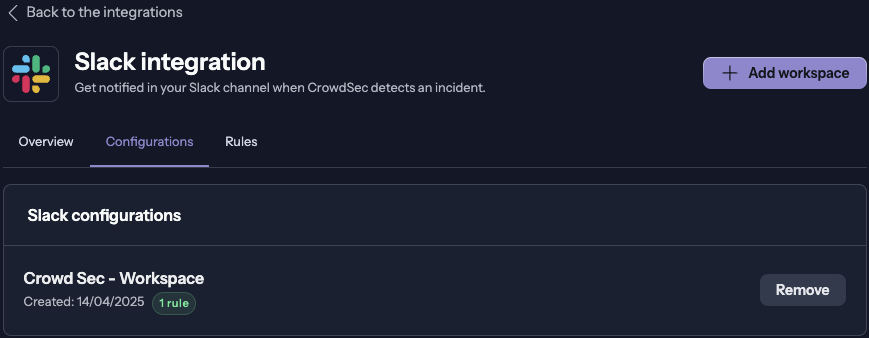
Your Slack integration is now linked to your CrowdSec Console. If you want to link the integration to a private channel, invite it directly from the Slack channel.
Create a notification rule
-
In the CrowdSec Console, navigate to Settings > Integrations > Slack go to the Rules tab and click on Add rule.
-
Follow the steps in the Create a notification rule documentation to create your rule.
Troubleshooting
Rate Limiting Error
If you're attempting to create or update a notification rule and are receiving the following error: "Slack rate limit exceeded.", you should enter channel ID instead of the channel Name and wait for a minute. If your workspace has a lot of channels, we advise your to directly add the channel ID next time.
To find a channel's ID in Slack click the name of the channel at the top of the application and the channel ID will be displayed at the bottom of the modal.