Stack Health
The Stack Health Feature is a monitoring tool within the CrowdSec Console helping you keep your infrastructure operational and properly configured.
Its primary goal is to identify configuration issues, connectivity problems, or potential misconfigurations that could impact your detection capabilities.
Key Features
- Issue Detection: Identifies problems with Security Engines, Log Processors, and blocklists integrations
- Severity-Based Prioritization: Issues are categorized by criticality (Critical, Important, Recommended, Bonus)
- Contextual Troubleshooting: Each issue points to a dedicated troubleshooting page with detailed diagnosis steps and resolution guidance
- Notification Support: Get notified about critical issues through the Console notification system
Accessing Stack Health
Stack Health is available in the CrowdSec Console for all authenticated users.
It is manifesting as:
- A dedicated dashboard accessible from the Security Stack space left bar menu.
- An issue counter badge on the Security Engines cards (circle in top right corner)
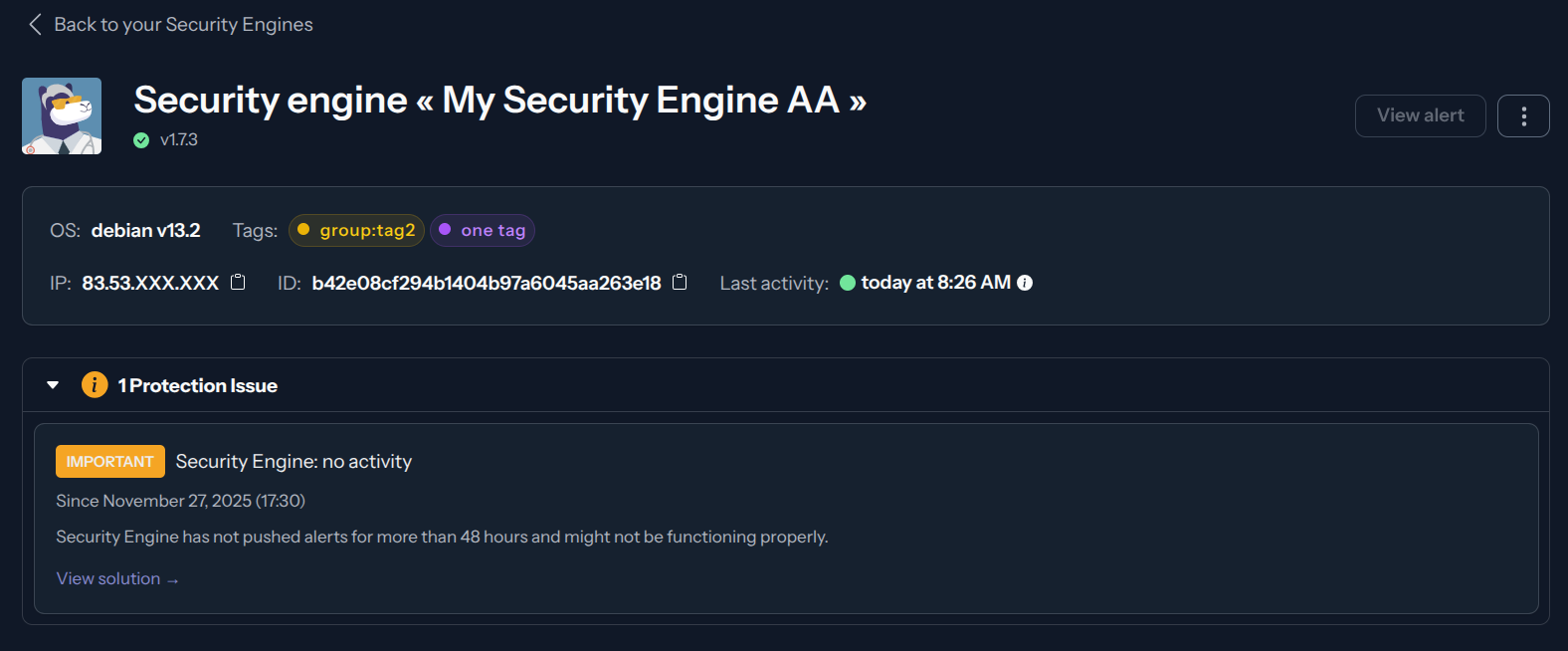
- A list of issues in the Security Engine details view.
Stack Health Dashboard
The dashboard shows:
- List of all detected issues in your organization grouped by criticality
- A filter to focus on a specific Security Engine
- Each issue card displays:
- Issue title and description
- Affected Security Engine(s)
- Buttons to: mark as resolved, ignore or access troubleshooting guide

Issues in Security Engine view
A badge on the Security Engine card indicates the number of active issues affecting that engine. If you click on the Security Engine card to access its details, you will find a dedicated section listing all active issues for that engine.
| SE Card with Badge | SE Details with Issues |
|---|---|
 |  |
Understanding Issue Criticality
Stack Health categorizes issues into four severity levels:
| Severity | Description |
|---|---|
| Critical | Immediate attention required - core functionality is impaired |
| Important | Should be addressed soon - may impact protection effectiveness |
| Recommended | Additional actions to improve your security posture |
| Bonus | Optimization advice and premium feature recommendations |
Focus on resolving Critical and Important issues first to ensure your security stack is functioning properly.
Issue Details and Resolution
Click on any issue to view detailed information and step-by-step troubleshooting guidance.
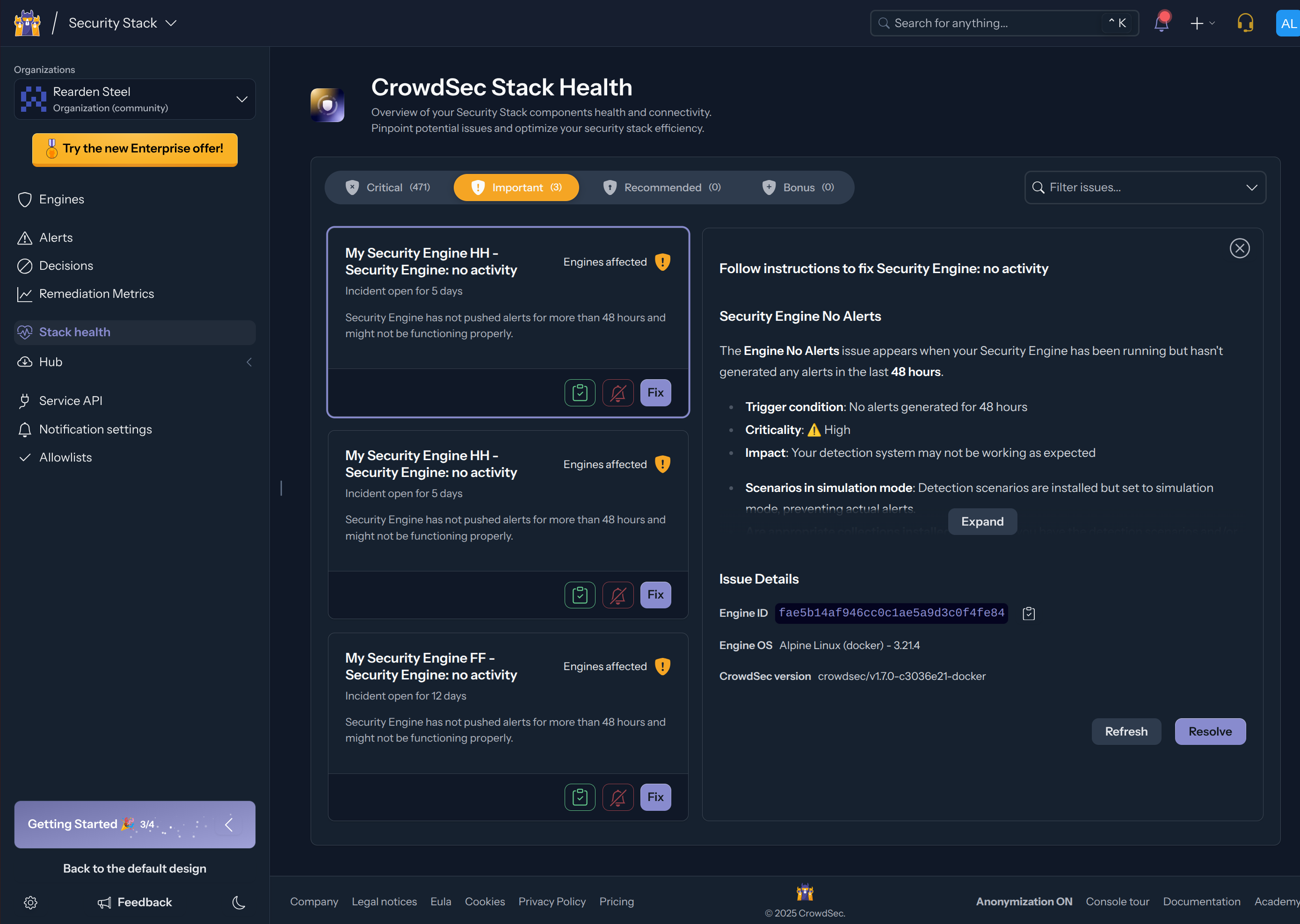
Each issue detail page includes:
- Trigger Condition: Why the issue was raised
- Criticality Level: Severity and priority
- Impact: What functionality is affected
- Engine Information: Affected Security Engine details (ID, OS, IP address)
- Contextual Troubleshooting: Specific diagnosis steps for your situation
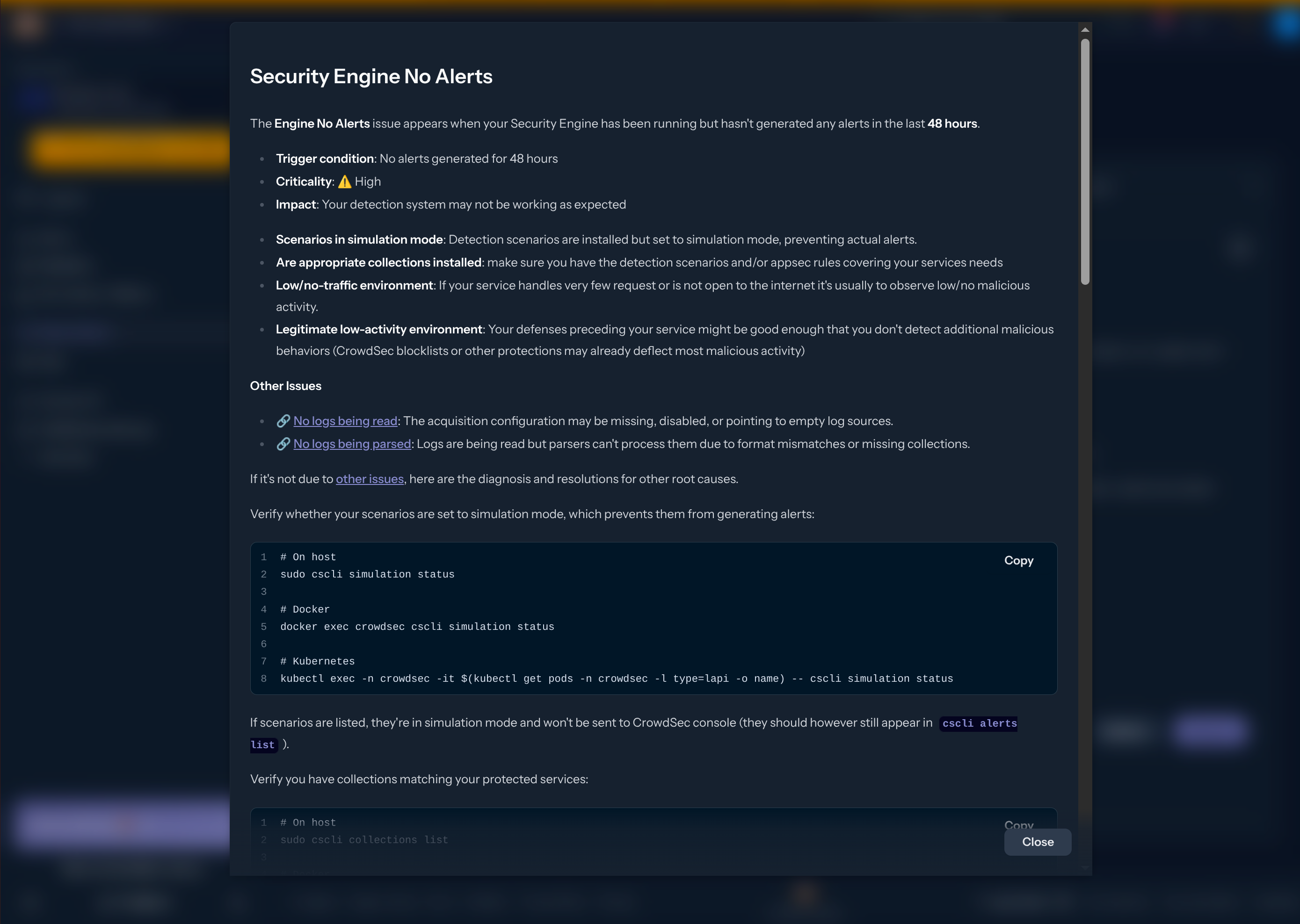
Example: Security Engine No Alerts
When a Security Engine hasn't generated alerts in 48 hours, Stack Health provides:
- Possible root causes (simulation mode, missing collections, low traffic)
- Commands to verify scenario status
- Steps to check log acquisition and parsing
- Links to related documentation
List of Issues
Refer to the Console Health Check Issues documentation page for a comprehensive list of all Stack Health issues, their trigger conditions, and links to troubleshooting guides.
This page is regularly updated as new issues are added.
Notifications and Alerts
Stack Health integrates with the Console notification system to alert you when critical issues occur.
To receive notifications:
- Navigate to Notification Settings in the Console
- Configure your preferred notification channels (Email, Slack, Discord, Webhook)
- Set up notification rules for Stack Health events
Learn more about Console Notification Integrations.
Best Practices
Regular Monitoring
- Check Stack Health dashboard regularly, especially after infrastructure changes
- Set up notifications for Critical and Important issues
- Review the full list of issues at least weekly
Prioritize by Severity
- Address Critical issues immediately - they indicate broken functionality
- Plan to fix Important issues within 24-48 hours
- Schedule Recommended improvements during maintenance windows
- Explore Bonus optimizations when optimizing your setup